Import and Export
Import VPN tunnel configurations from files and QR codes, and export your tunnels as archives for backup or transfer.
Supported Import Formats
| Format | Extension | Description |
|---|---|---|
| WireGuard | .conf | Standard WireGuard configuration file. |
| Vylos | .vylos | Vylos configuration file with split DNS and on-demand rules. See Split DNS for format details. |
| Archive | .zip | ZIP archive containing any mix of .conf and .vylos files. |
The maximum size for any imported file is 2 MB.
Importing from a File
You can import tunnel configurations using the file picker on all platforms. Tap the Add Tunnel button, choose Import from File or Archive, and select one or more files from your device.
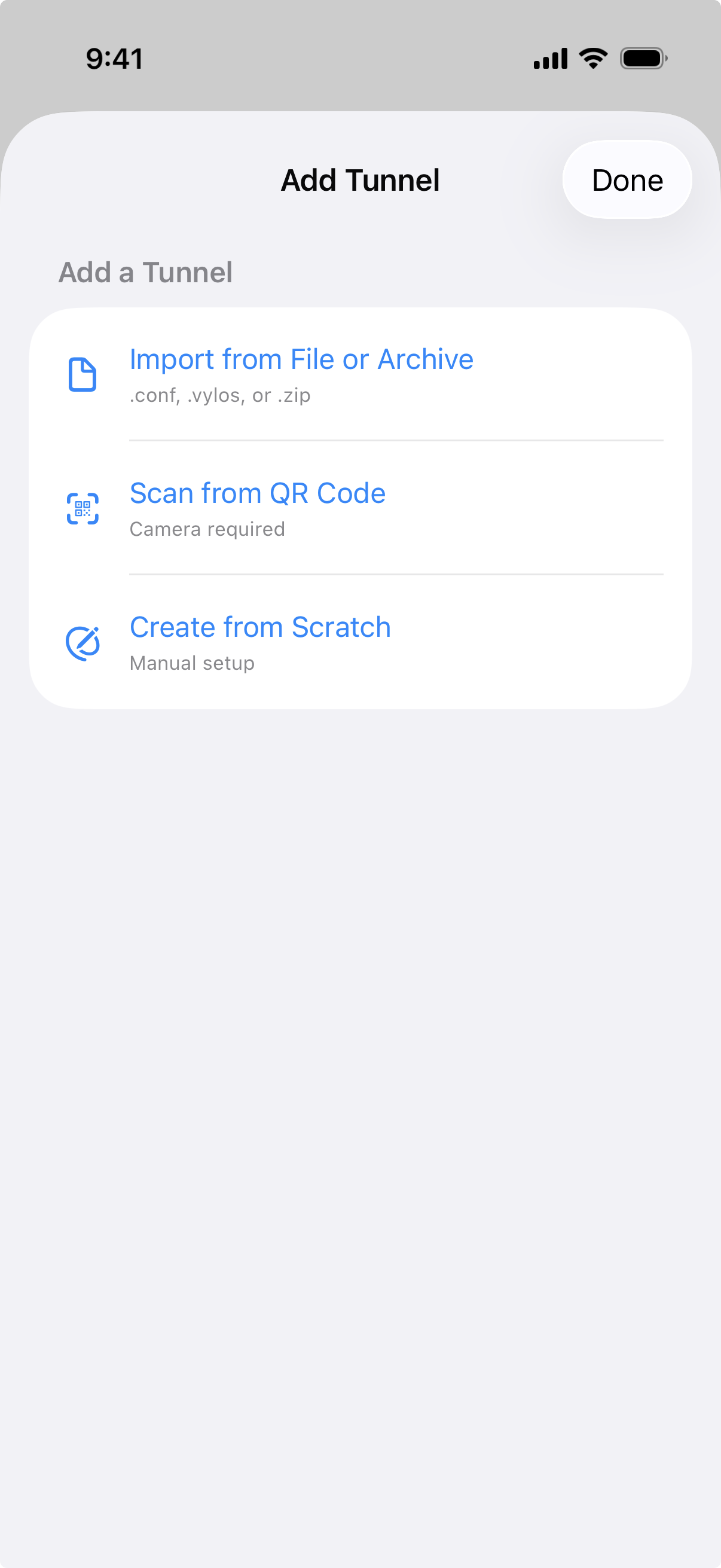
On iOS, you can also import files through the Share sheet or "Open In" menu. Vylos registers as a handler for .conf, .vylos, and .zip files, so these file types will show Vylos as an option when you tap Share or Open In from another app (for example, the Files app or a mail attachment).
Importing from a QR Code
QR code import is available on iOS only. Tap the Add Tunnel button, choose Scan from QR Code, and point the camera at a QR code.
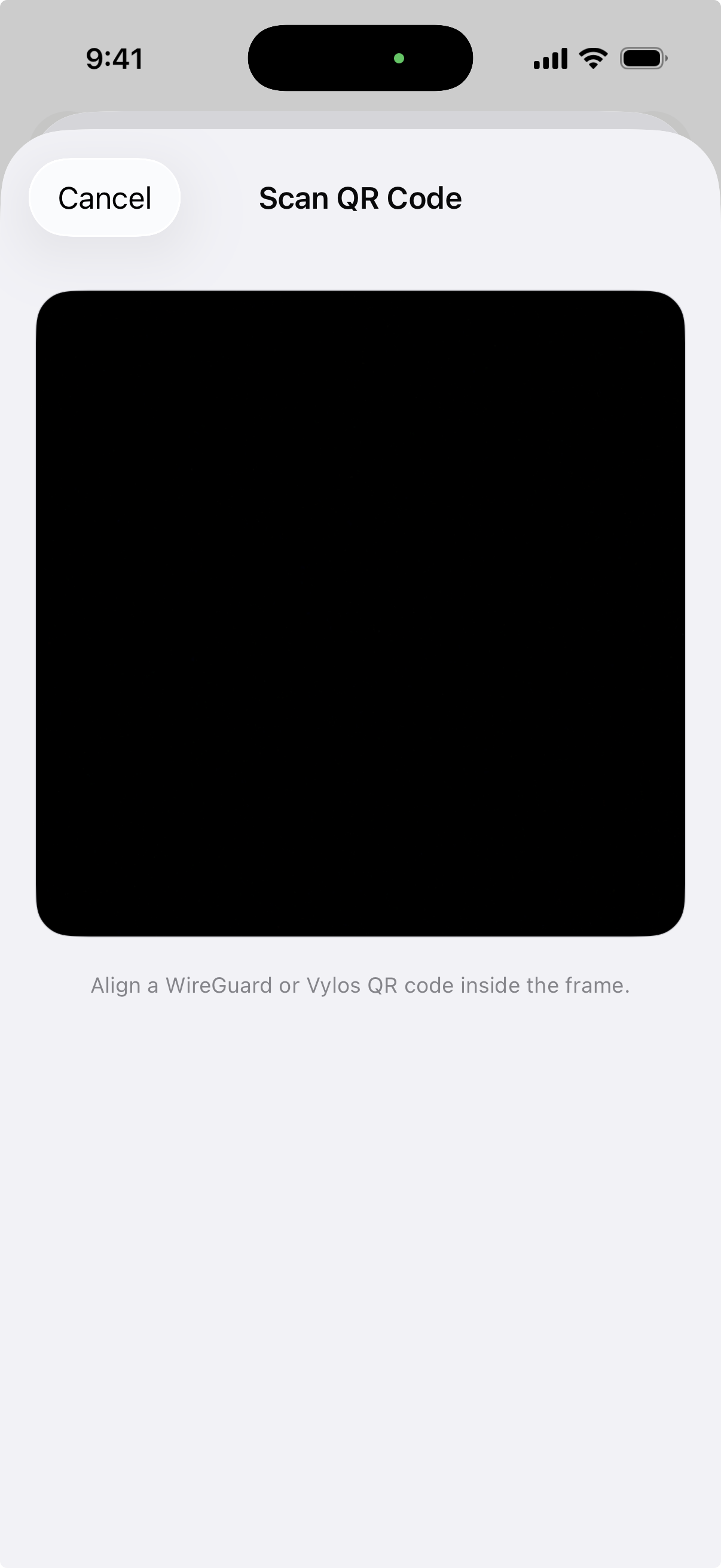
Vylos supports two QR code formats: standard WireGuard configuration text (plain .conf content) and Base64-encoded .vylos payloads. The app attempts to parse plain text first, then falls back to Base64 decoding. The maximum payload size for Base64-encoded content is 16 KB. After a successful scan, the app prompts you to enter a name for the tunnel before saving it.
Batch Import
When you import a .zip archive, Vylos processes every configuration file inside it. After the import completes, a results screen shows the outcome for each file — whether it succeeded or failed — so you can identify and correct any issues.
Exporting Tunnels
Export creates a ZIP archive containing all of your user-created (app) tunnels. Managed tunnels pushed by MDM are not included in the export.
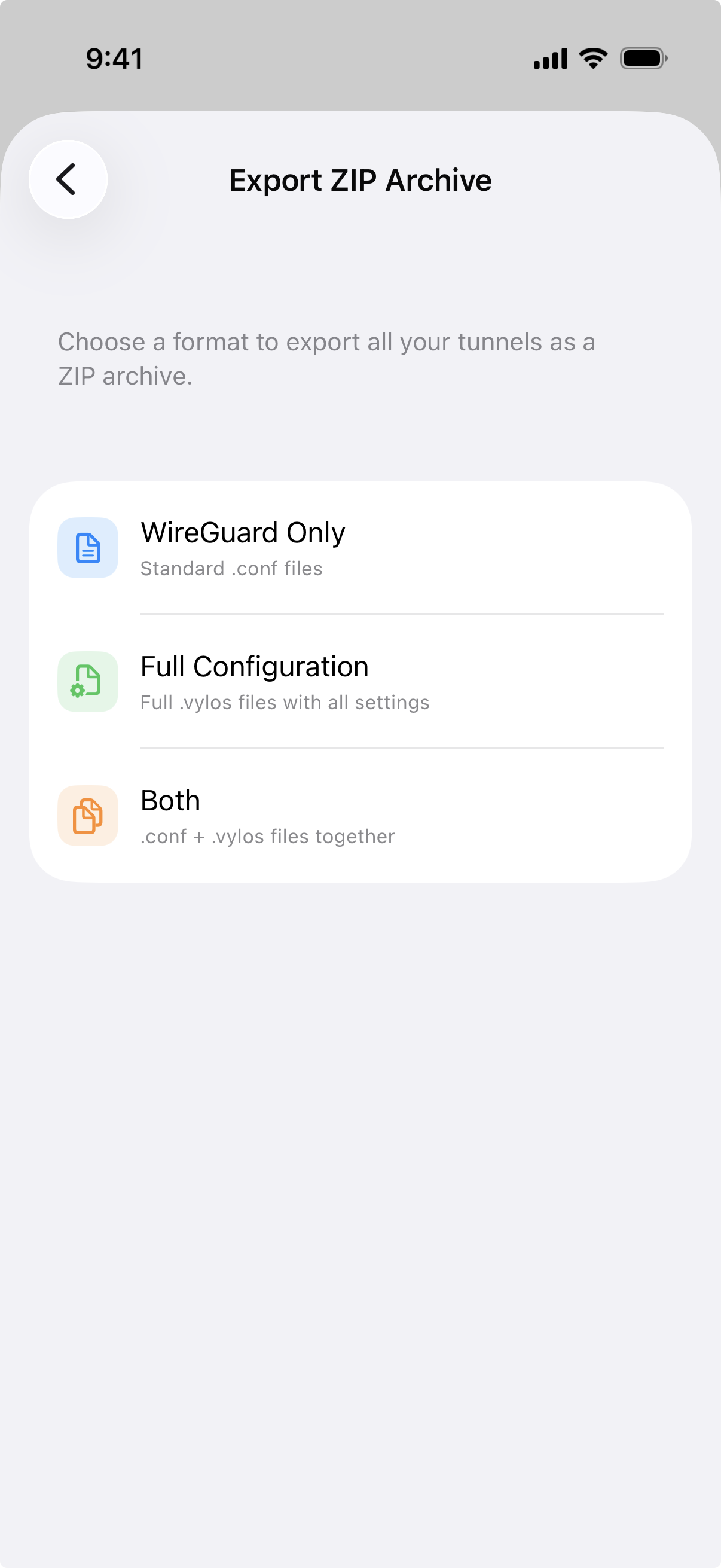
To export, go to Settings, then tap Export ZIP Archive under the Tools section. You'll be asked to pick an export format:
| Format | Contents |
|---|---|
| WireGuard Only | One .conf file per tunnel. |
| Full Configuration | One .vylos file per tunnel (includes split DNS and on-demand rules). |
| Both | One .conf file and one .vylos file per tunnel. |
After the archive is created, the Share sheet opens so you can save the file, send it to another app, or share it with AirDrop or another service.