MDM Overview
Understand how Vylos integrates with Apple Managed App Configuration to support enterprise MDM deployments.
How Managed Configuration Works
Vylos reads managed app configuration from the standard Apple com.apple.configuration.managed key. When an MDM profile is installed on a device, the MDM server delivers a configuration dictionary to this key, and Vylos reads the values at runtime.
All configuration values are string-encoded. MDM systems may deliver booleans as strings, so Vylos normalizes all values through a consistent boolean parsing rule.
Boolean Parsing
All restriction keys that accept boolean values are delivered as strings and parsed using the following rule:
"false"(case-insensitive) is treated asfalse."0"is treated asfalse.- Everything else is treated as
true.
For example, "False", "FALSE", and "0" all evaluate to false. Values such as "true", "1", "yes", or any other non-empty string evaluate to true.
Automatic App Lock Bypass
When any managed configuration is present (a non-empty dictionary under com.apple.configuration.managed), the app lock screen is automatically bypassed. This means that Face ID, Touch ID, and TOTP authentication prompts are skipped for MDM-managed devices.
This allows users on MDM-managed devices to access the app immediately, since device-level authentication is managed by the MDM system.
Configuration Refresh Lifecycle
Vylos checks for managed configuration updates at the following points:
- App launch. Configuration is read when the app starts.
- Foreground transitions. Configuration is refreshed when the app returns from the background.
- Window or scene activation. Switching focus into a Vylos window or scene triggers a configuration re-read.
This ensures that if an administrator pushes a new MDM profile while the app is running, the changes are picked up as soon as the user interacts with the app.
Retry Polling for Delayed Profile Delivery
MDM profiles may not be available immediately when a device is first enrolled or when a new configuration is pushed. To handle this, Vylos implements retry polling for up to 30 seconds after detecting that a managed configuration dictionary is expected but not yet available.
This accommodates scenarios where the MDM profile delivery is slightly delayed relative to the app installation or launch.
Viewing Managed Configuration Status
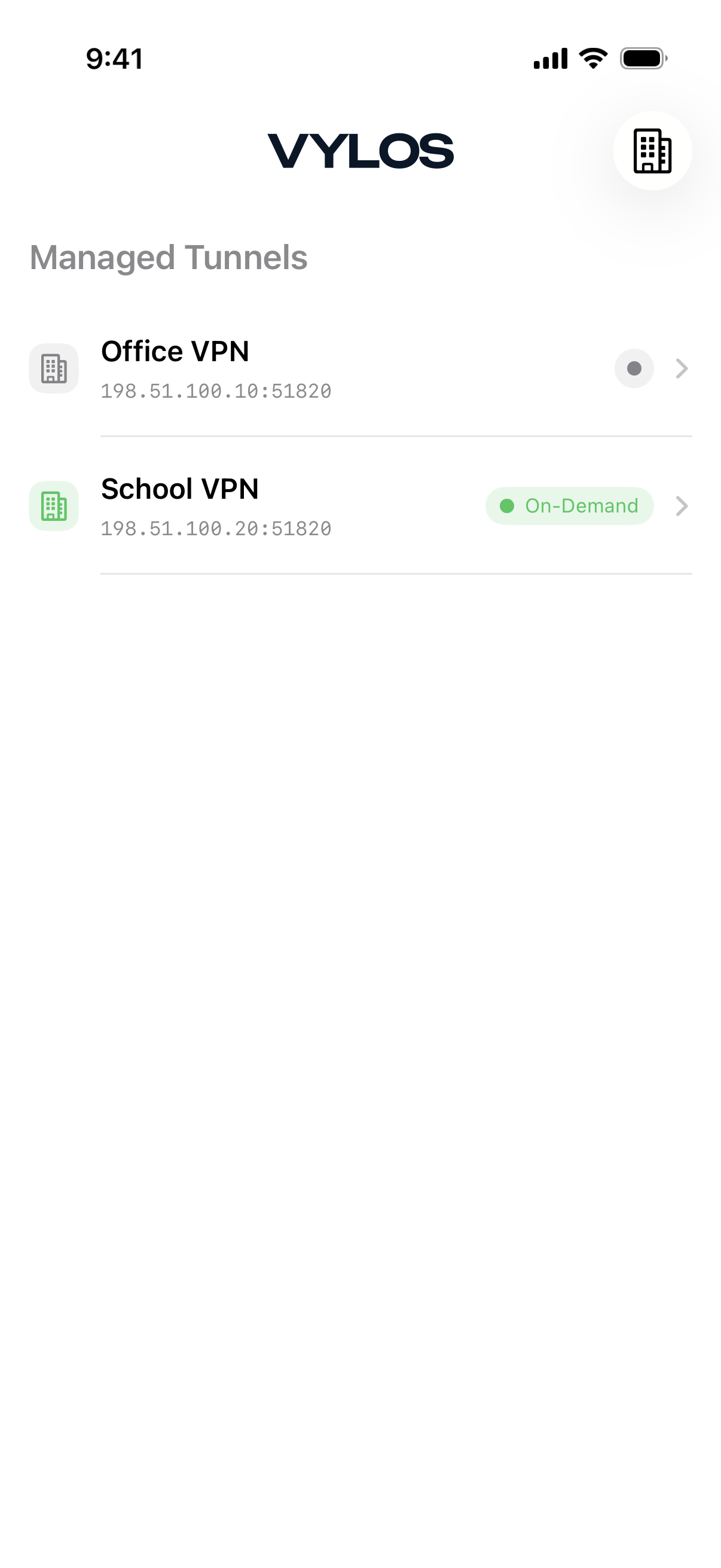
The app provides an informational screen titled "Managed Configuration." When a managed configuration is active, this screen is accessible from a toolbar button on the Home screen. When no managed configuration is present, it's accessible from the "About Managed App Configuration" button in the App Protection section of Settings. The screen displays:
- Status indicator. A colored dot showing whether managed configuration is currently Enabled (green) or Disabled (gray).
- How It Works. Explains that the MDM pushes keys into managed app configuration and Vylos reads those values automatically.
- User Access. Clarifies that users can review managed values but can't enable or modify managed mode from inside the app.
- Enablement Path. Directs users to contact their IT admin to deploy managed app configuration through their MDM system.
This screen is informational only. It doesn't display individual restriction key values or allow any configuration changes.