Restriction Keys
Configure the three MDM restriction keys that control app behavior for managed Vylos deployments.
Summary Table
| Key | Type | Default When Absent | Description |
|---|---|---|---|
allowManualTunnels | String (parsed as bool) | true | Controls whether users can manage app tunnels. |
allowSettings | String (parsed as bool) | true | Controls whether users can access app settings. |
blockJailbrokenDevices | String (parsed as bool) | false | Blocks app usage on jailbroken iOS devices. |
allowManualTunnels
- Type: String (parsed as boolean)
- Default when absent:
true
Behavior When Set to false
When this restriction is active, users are prevented from creating, editing, or deleting app tunnels. The following changes take effect:
- Home view. The "My Tunnels" section is hidden entirely. The Add button for creating new tunnels is also hidden.
- Tunnel creation. The TunnelAddView screen is blocked. Users can't add tunnels through file import, QR code scanning, or manual creation.
- Tunnel editing. The TunnelEditView screen is blocked. Users can't modify existing tunnel configurations.
- System VPN entries. All app tunnel system VPN entries are suspended. This means they're removed from the iOS Settings VPN list, preventing users from toggling them outside the app.
- Data preservation. Tunnel data is preserved locally on the device. No tunnel configurations are deleted when this restriction is applied.
- Automatic restoration. When the restriction is lifted (the key is removed or set back to
true), all previously suspended tunnels are automatically restored, including their system VPN entries.
Interaction with Managed Tunnels
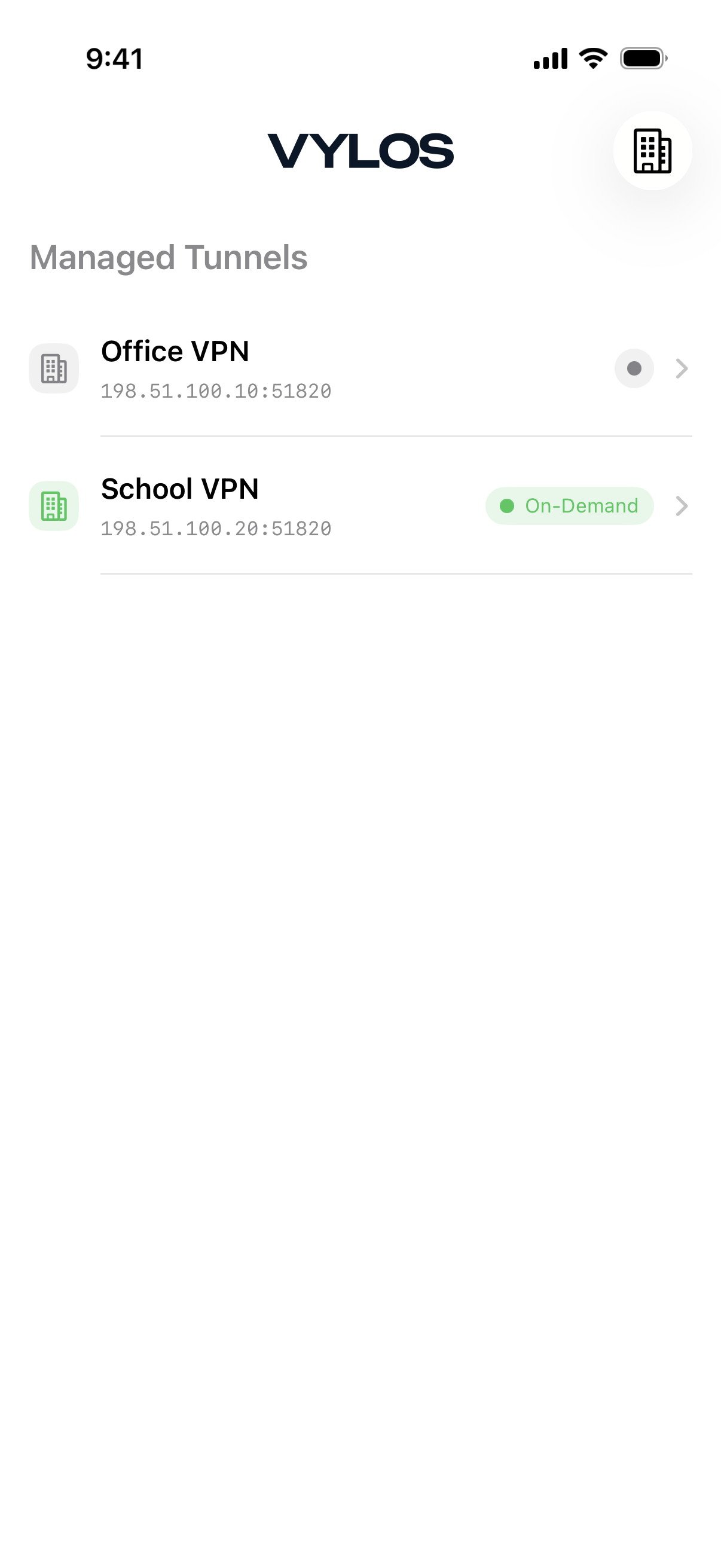
This restriction only affects app tunnels (tunnels created by the user within the app). Managed tunnels pushed via MDM profiles remain visible and functional regardless of this setting. See Managed Tunnels for details.
allowSettings
- Type: String (parsed as boolean)
- Default when absent:
true
Behavior When Set to false
When this restriction is active, the entire Settings area of the app is locked down. The following changes take effect:
- Toolbar. The Settings button is hidden from the app toolbar. Users have no way to navigate to Settings.
- Settings screen. If the Settings screen is accessed by any means, the entire content is replaced with the message: "Settings are managed by your organization."
- Disabled features. All settings are inaccessible, including:
- Start at Login (macOS only)
- App protection method (Face ID, Touch ID, TOTP)
- TOTP setup and management
- App appearance (System, Light, Dark)
- App language selection
- App icon theme selection
- Notification preferences
- Export archive
- Log viewer
- Legal and license information
- Version information
blockJailbrokenDevices
- Type: String (parsed as boolean)
- Default when absent:
false - Since version: 1.1.0
- Platform: iOS only. On macOS and visionOS, the jailbreak detection service is not compiled in (
#if os(iOS)), so this restriction has no effect regardless of its value.
Behavior When Set to true
When this restriction is active and the device is detected as jailbroken, the app displays a full-screen block page with an organization policy message. The user can't dismiss this screen or access any app functionality.
Detection Methods
Vylos uses four detection methods to identify jailbroken devices:
1. Suspicious File Detection
The following file paths are checked for existence:
/Applications/Cydia.app/Library/MobileSubstrate/MobileSubstrate.dylib/var/lib/cydia/private/var/stash
2. URL Scheme Detection
The following URL schemes are checked for handler registration:
cydia://package/com.example.packagesileo://package/com.example.packageundecimus://
3. Sandbox Escape Test
The app attempts to write a test file to /private/jailbreaktest, a path outside the app sandbox. If the write succeeds, the sandbox has been compromised, indicating a jailbreak.
4. Dynamic Library Injection Scan
The app scans loaded dynamic libraries (dyld) for known jailbreak-related libraries:
MobileSubstrateSubstrateLoaderTweakInjectlibhookerCepheiFridaGadgetfrida-agentcycript
If any of these libraries are found in the loaded image list, the device is flagged as jailbroken.
Data Safety
No tunnel data is deleted or modified when the jailbreak block is active. Tunnel configurations remain intact on the device and become accessible again if the restriction is removed or the jailbreak condition is resolved.
For more details on the jailbreak detection policy, see Jailbreak Policy.