On-Demand Rules
Configure tunnels to connect automatically when your device joins specific networks or network types.
Overview
On-demand activation lets a tunnel connect automatically based on the type of network your device is using. When on-demand rules are configured and enabled, the system monitors network changes and activates or deactivates the tunnel without manual intervention.
On-demand rules are configured per-tunnel in the Vylos tab of the tunnel form editor, alongside split DNS settings.
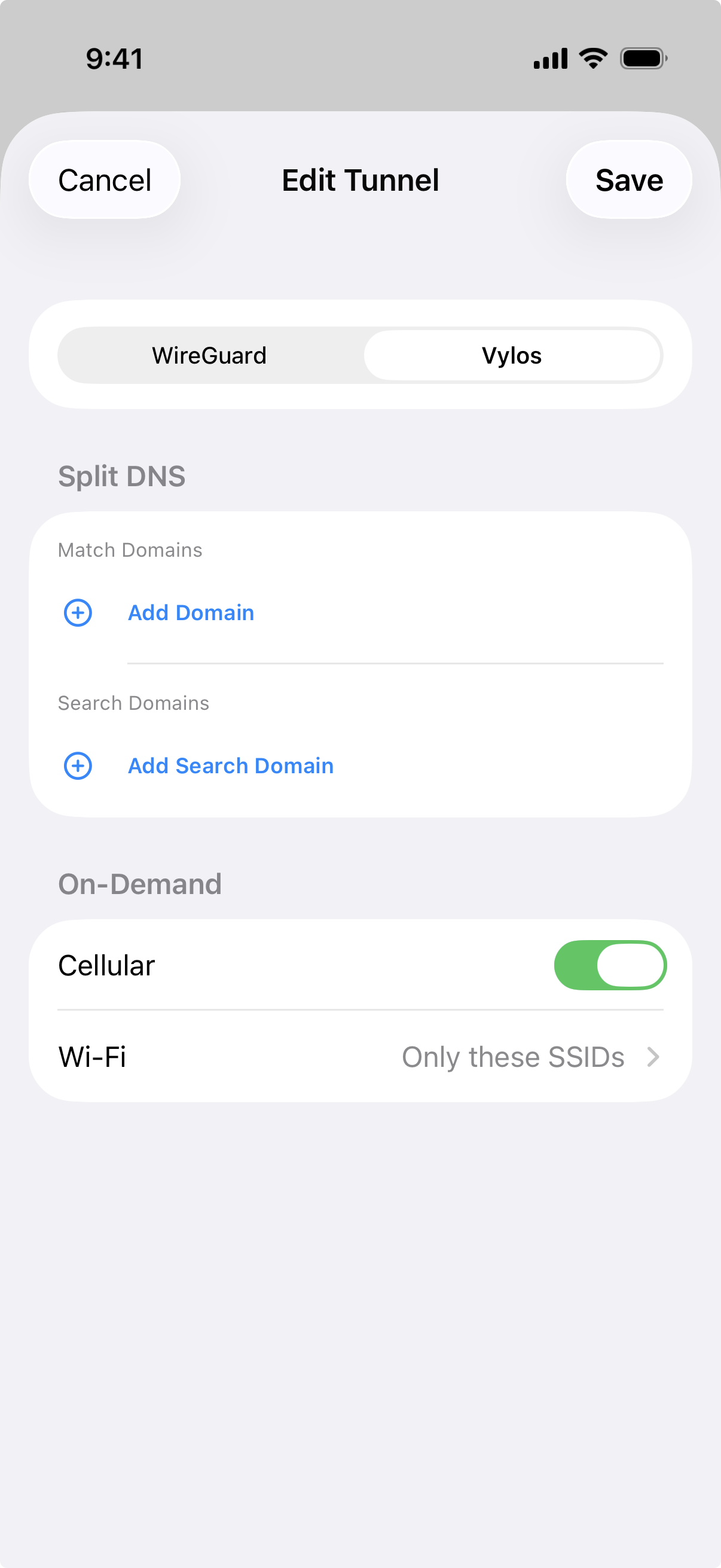
Cellular
The Cellular toggle controls whether the tunnel activates automatically when the device is on a cellular data connection. Turn it on to enable automatic activation on cellular; turn it off to disable it.
On macOS, this toggle controls Ethernet instead of cellular.
Wi-Fi
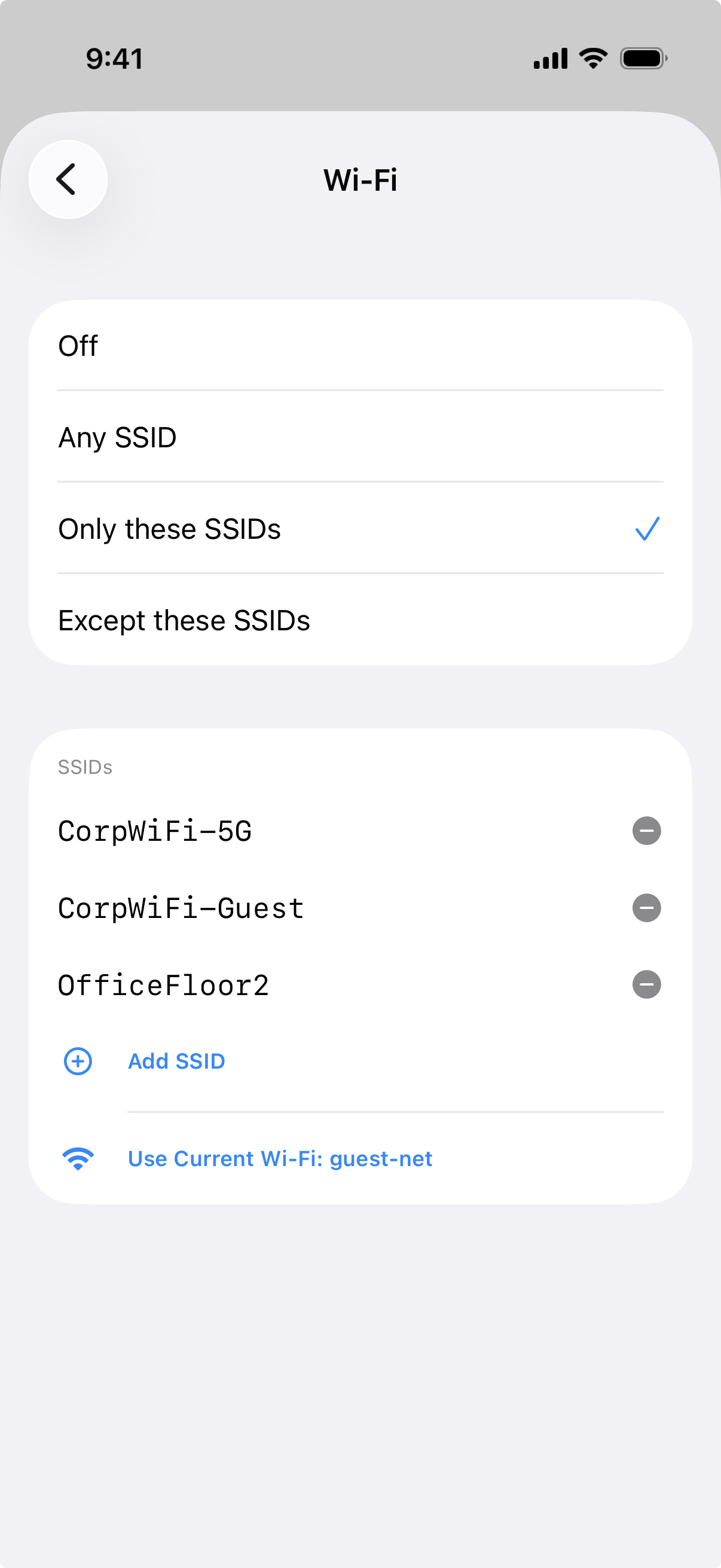
The Wi-Fi setting has four modes:
| Mode | Behavior |
|---|---|
| Off | The tunnel does not activate automatically on Wi-Fi. |
| Any SSID | The tunnel activates on any Wi-Fi network. |
| Only these SSIDs | The tunnel activates only when connected to one of the listed SSIDs. |
| Except these SSIDs | The tunnel activates on all Wi-Fi networks except the listed SSIDs. |
When "Only these SSIDs" or "Except these SSIDs" is selected, you must provide at least one SSID. The form will display a validation message if the list is empty.
On-Demand Tunnel Behavior
When on-demand rules are enabled for a tunnel, the tunnel status works differently from a standard tunnel:
- On-Demand (yellow) — The tunnel's on-demand rules are active, but the tunnel is not currently connected. The system is monitoring network conditions and will connect when a matching network is detected.
- Inactive (On-Demand) — The on-demand rules are enabled, but the device is on a network that doesn't match any of the configured rules. This is normal behavior; the tunnel will activate when you move to a matching network.
- Active (On-Demand) (green) — The tunnel is connected because the current network matches an on-demand rule.
- On-Demand Disabled (gray) — The tunnel has on-demand rules configured, but they've been turned off.
The toggle switch for an on-demand tunnel enables or disables the on-demand rules rather than directly connecting or disconnecting the tunnel.
Automatic Re-Evaluation on App Foreground
When the app returns to the foreground, Vylos automatically re-evaluates on-demand tunnels and reconnects any that should be active but aren't. This handles scenarios where the system's on-demand state falls out of sync with the app, such as after a device reboot or a prolonged background period. No manual action is required.
On-Demand Clash Detection
When two or more enabled tunnels have overlapping on-demand rules, Vylos displays a warning banner at the top of the home screen. Overlapping rules can cause unpredictable behavior because the system may not know which tunnel to activate.
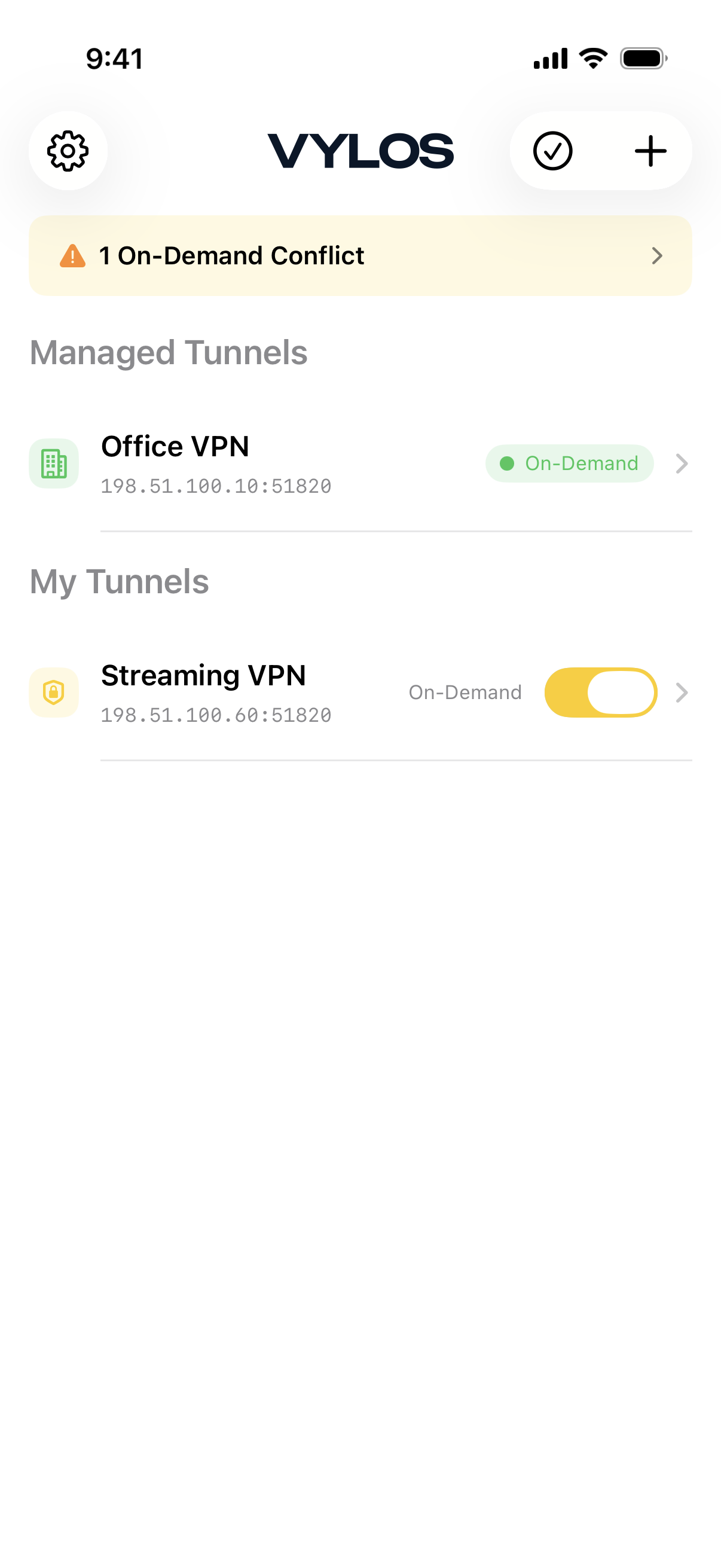
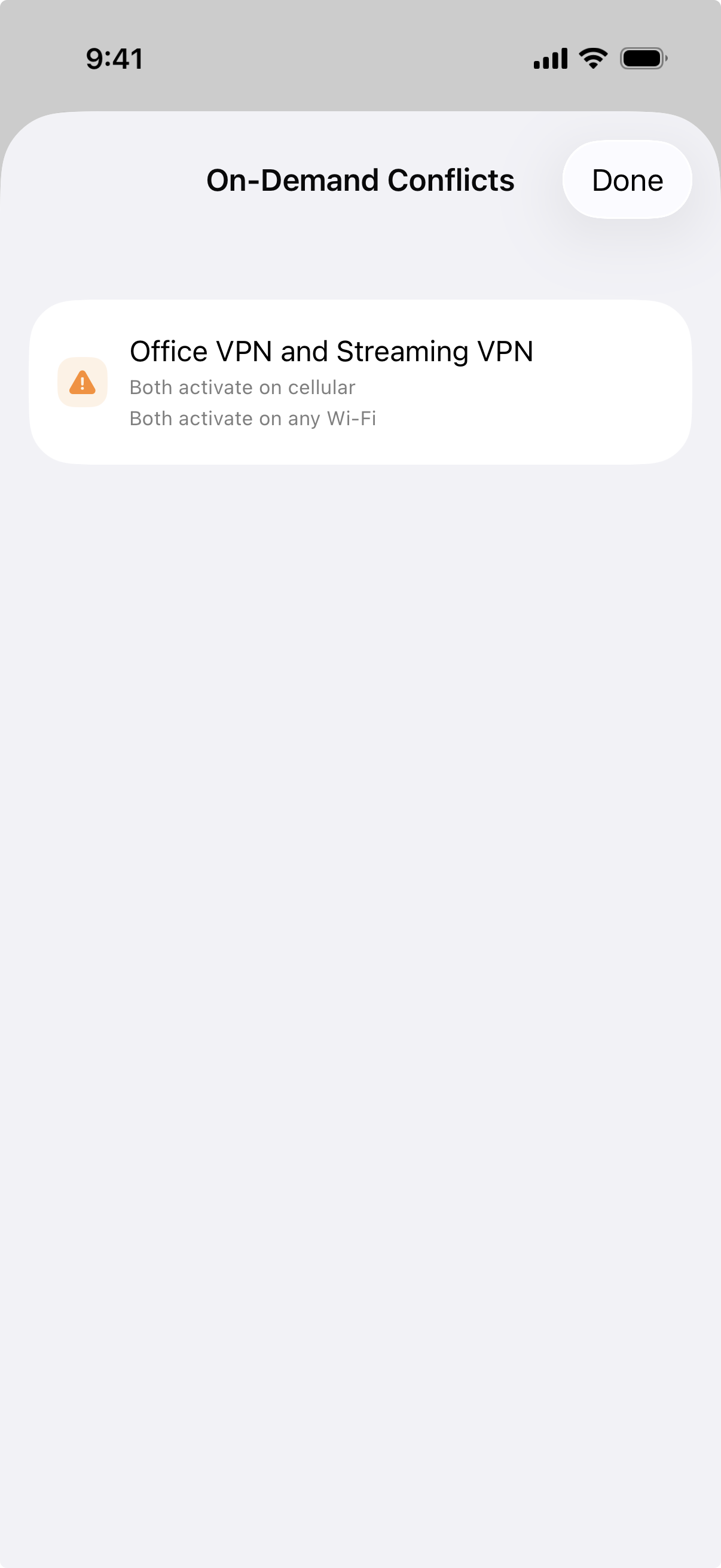
Tap the warning banner to see the full list of conflicts. Each conflict entry shows which two tunnels clash and why.
Clash Types
| Clash Type | Description |
|---|---|
| Cellular overlap | Both tunnels are set to activate on cellular. |
| Wi-Fi Any overlap | Both tunnels are set to activate on any Wi-Fi network. |
| Specific SSID overlap | Both tunnels are set to activate on one or more of the same SSIDs. |
| Most Wi-Fi networks overlap | Both tunnels have broad Wi-Fi rules (such as two "Except" lists) that cover most networks. |
To resolve a conflict, edit one of the tunnels and adjust its on-demand rules so they no longer overlap with the other tunnel.