Security and App Lock
Protect access to Vylos with biometric authentication, TOTP codes, and secure keychain storage.
App Lock
App lock prevents unauthorized access to the app. You can configure it from the App Protection section in Settings.
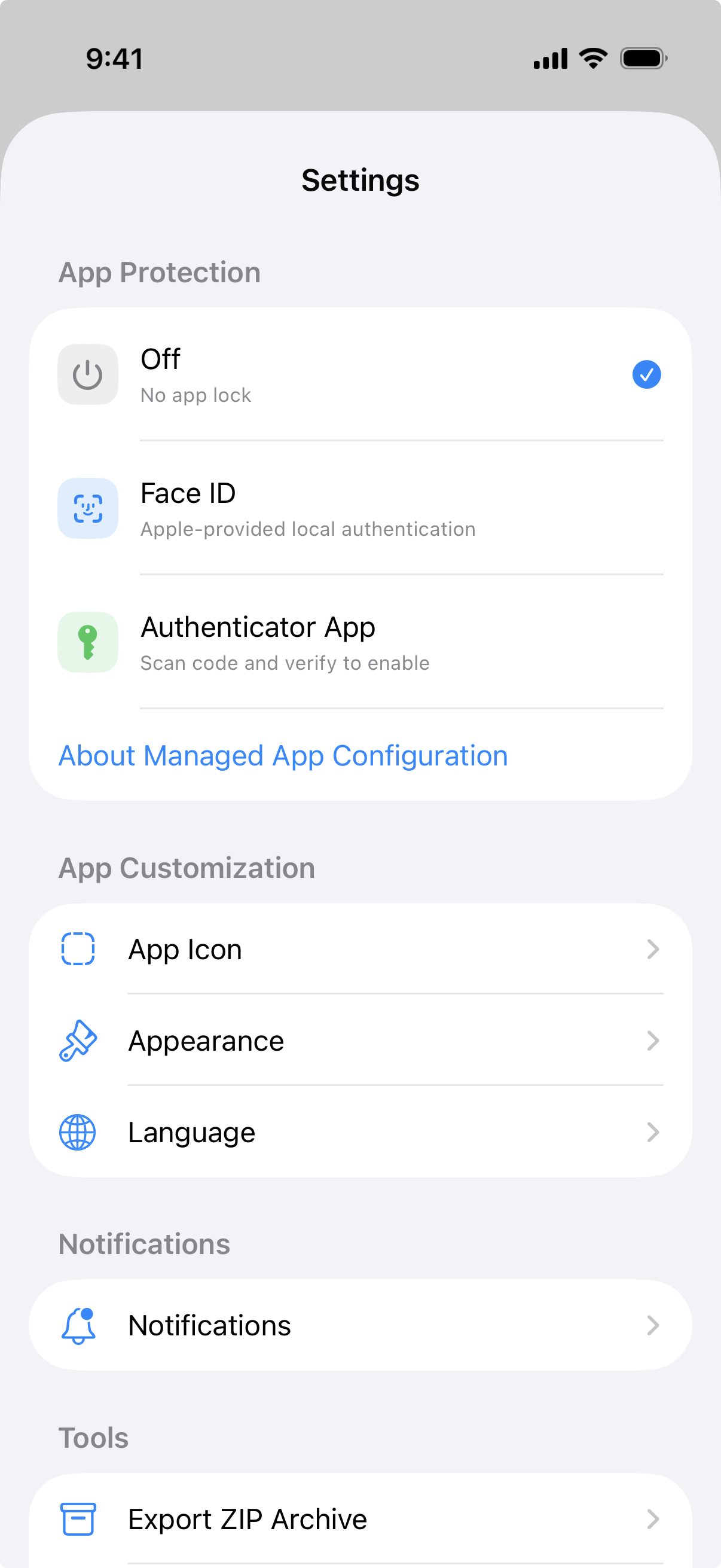
Protection Methods
| Method | Description |
|---|---|
| Off | No lock. The app is accessible without authentication. |
| Local Authentication | Uses Face ID, Touch ID, or device passcode, depending on available hardware. |
| Authenticator App | Uses a time-based one-time password (TOTP) verified through an authenticator app such as Google Authenticator or Authy. |
Local Authentication
When set to Local Authentication, Vylos uses your device biometrics or passcode to protect access. The lock screen displays the appropriate label — Face ID, Touch ID, or Passcode — depending on what your device supports. On visionOS, Optic ID is not directly labeled; the system falls back to passcode authentication. Authentication is triggered automatically when the app launches and when it returns to the foreground.
Authenticator App (TOTP)
When you choose the Authenticator App method, Vylos generates a secret key for use with a TOTP authenticator app. The setup process works as follows:
- Vylos generates a 20-byte random secret and encodes it in Base32.
- A QR code is displayed that you can scan with your authenticator app. A manual secret key is also shown if you prefer to enter it by hand.
- The QR code uses the standard
otpauth://URI format:otpauth://totp/Vylos:App Lock?secret=...&issuer=Vylos&algorithm=SHA1&digits=6&period=30. - You must enter a valid 6-digit verification code from your authenticator app to confirm setup before TOTP is enabled.
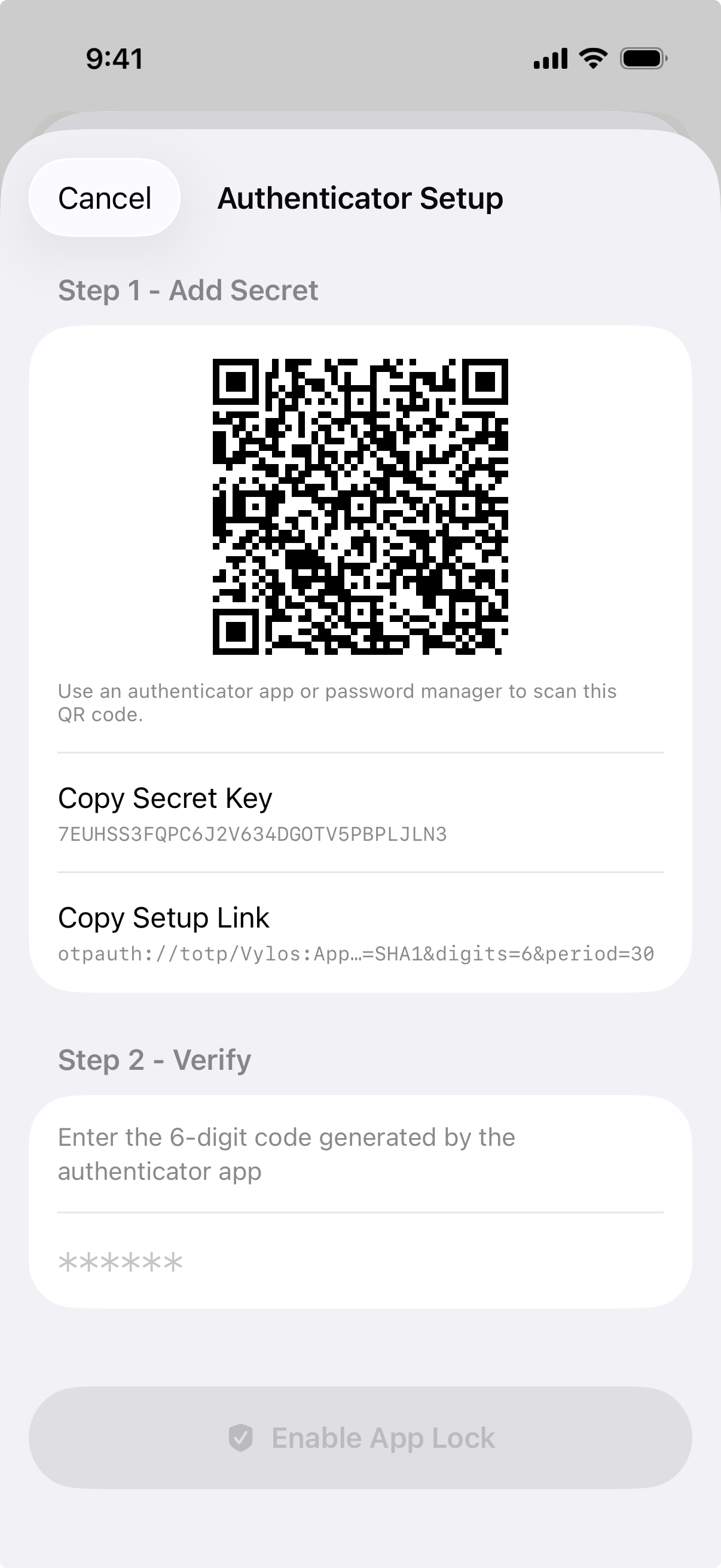
You can copy the secret key or the full setup link (otpauth:// URI) to your clipboard. Both values automatically expire from the clipboard after 120 seconds.
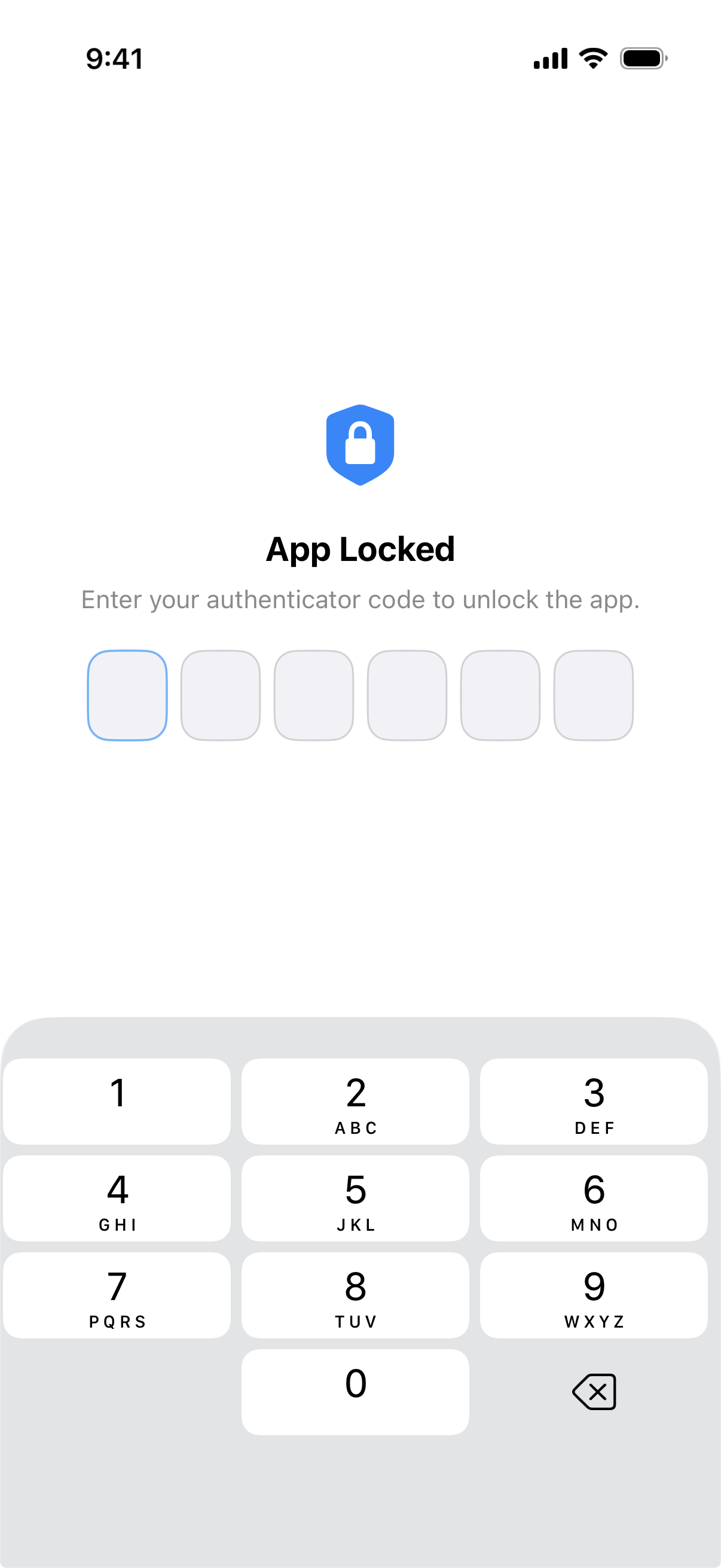
Once TOTP is configured, returning to Vylos presents the lock overlay that asks for a fresh 6-digit code.
Resetting TOTP
If you need to reset your authenticator app configuration, tap Reset TOTP Secret in the App Protection section of Settings. A confirmation dialog will appear asking you to confirm. After resetting, you'll need to set up the authenticator app lock again before you can use this protection method.
TOTP Code Validation
Vylos accepts codes from the current 30-second time period, as well as one period before and one period after. This provides a tolerance window of one period in each direction to account for minor clock differences between your device and your authenticator app.
TOTP Rate Limiting
To prevent brute-force attempts, Vylos enforces rate limiting on failed TOTP entries:
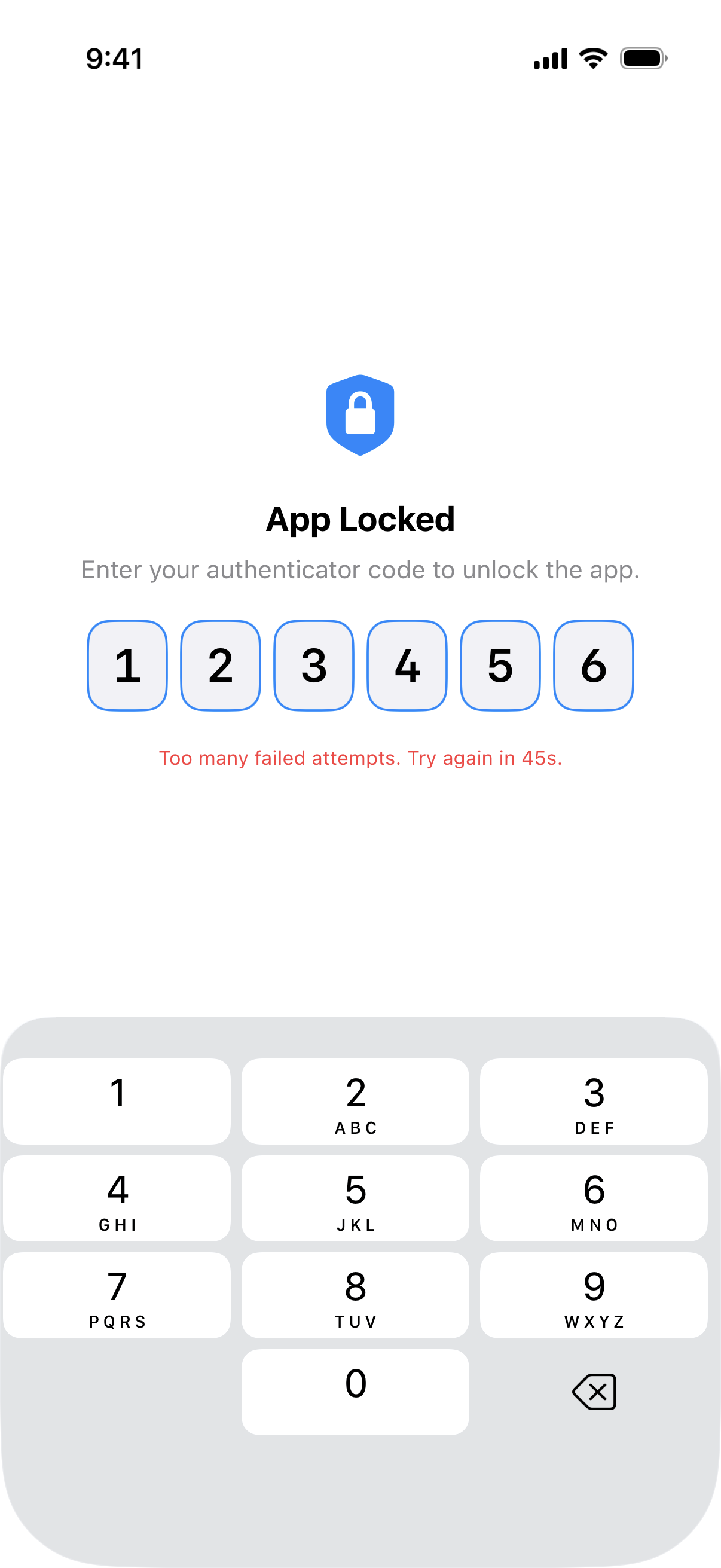
- After 5 consecutive failed attempts, a lockout period begins.
- The lockout duration follows an exponential backoff formula:
min(30 * 2^(attempts - 5), 300)seconds. - The first lockout is 30 seconds, doubling with each subsequent failure, up to a maximum of 300 seconds (5 minutes).
- The failure counter and lockout timer persist across app relaunches, so force-quitting the app does not reset them.
- The failure counter resets after a successful unlock, or when the authenticator secret is rotated or removed.
What App Lock Blocks
When the app is locked, the following actions are blocked:
- Accessing settings
- Adding or editing tunnels
- Running Siri Shortcuts
- Using Home Screen quick actions
- Importing configurations from file URLs
MDM Bypass
When a managed configuration is present from your organization's MDM (Mobile Device Management) system, the app lock overlay is disabled entirely. MDM-managed devices always have full access to the app.
Lock Behavior
The lock re-engages whenever the app moves to the background or becomes inactive. Returning to the app requires re-authentication.
Keychain Security
Tunnel configurations are stored in the iOS Keychain. TOTP secrets are protected at the strictest available level, which means:
- The secret is accessible only while the device is unlocked.
- The secret is not included in device backups or transferred to other devices.
Jailbreak Detection
On iOS, Vylos can detect jailbroken devices using four methods: suspicious file detection, URL scheme registration checks, sandbox escape testing, and dynamic library injection scanning. The full list of files, schemes, and libraries checked is documented in the Jailbreak Policy.
Jailbreak detection only blocks access to the app when the MDM configuration key blockJailbrokenDevices is enabled by your organization. Without this key, jailbreak detection doesn't restrict app usage.