Notifications
Set up local notifications to stay informed about VPN tunnel disconnection and reconnection events.
Enabling Notifications
Go to Settings > Notifications to configure notification preferences. A global master toggle controls whether notifications are enabled or disabled. Turning this on for the first time will prompt you to grant system notification permission.
When you enable notifications for the first time, all four notification types are automatically turned on. You can then disable individual types as needed.
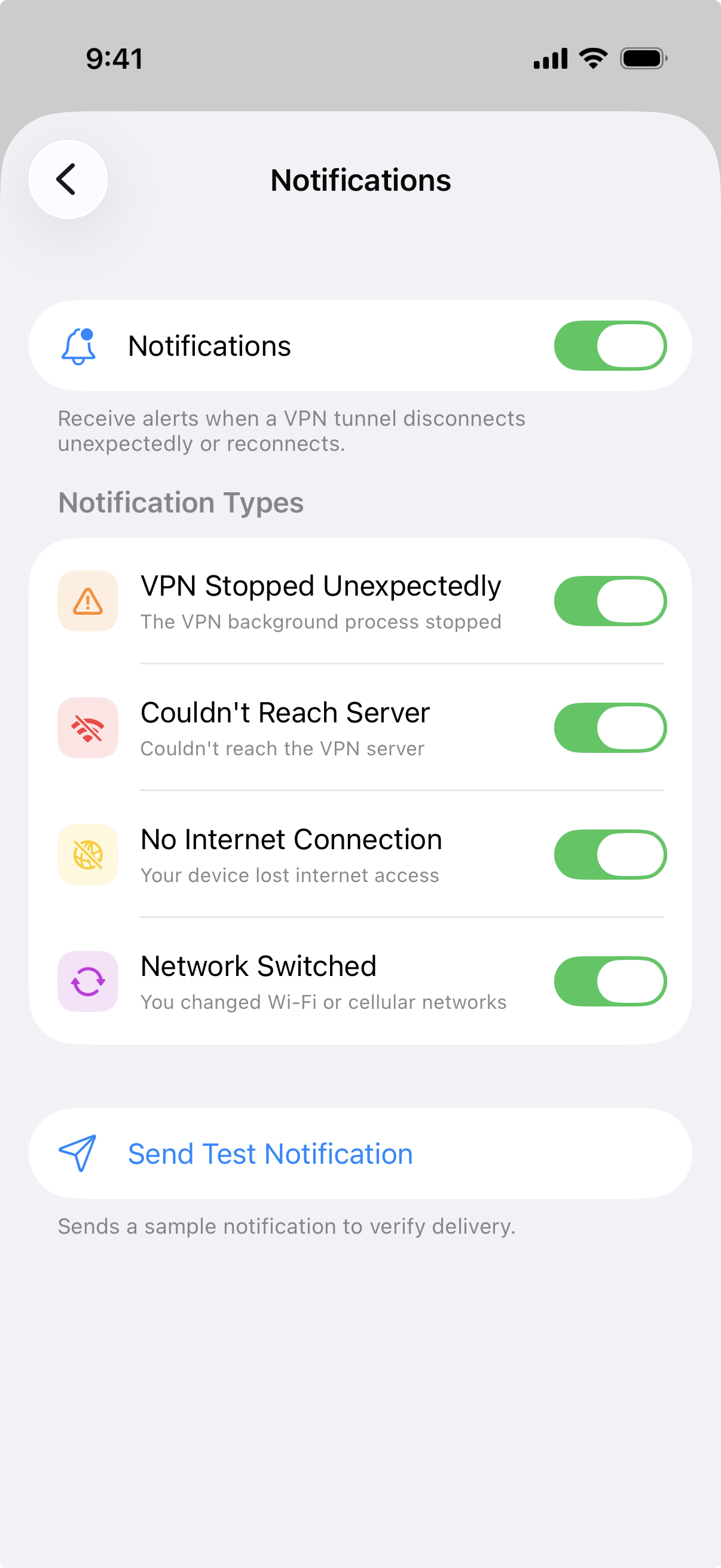
Notification Types
Each notification type can be toggled independently:
| Notification | Description |
|---|---|
| Provider Failed | The tunnel extension terminated unexpectedly. |
| Connection Failed | The connection to the VPN server failed. |
| No Network Available | No usable network connection is available on the device. When the network returns, a "VPN Reconnected" notification is also sent. |
| Unrecoverable Network Change | The device attached to a new network that cannot be recovered from. |
Reconnect Action
Disconnect notifications include a Reconnect action button. Tap it directly from the notification (without opening the app) to bring the tunnel back up. The action hands off to the same toggle the app uses internally, so the tunnel comes up through the normal activation path.
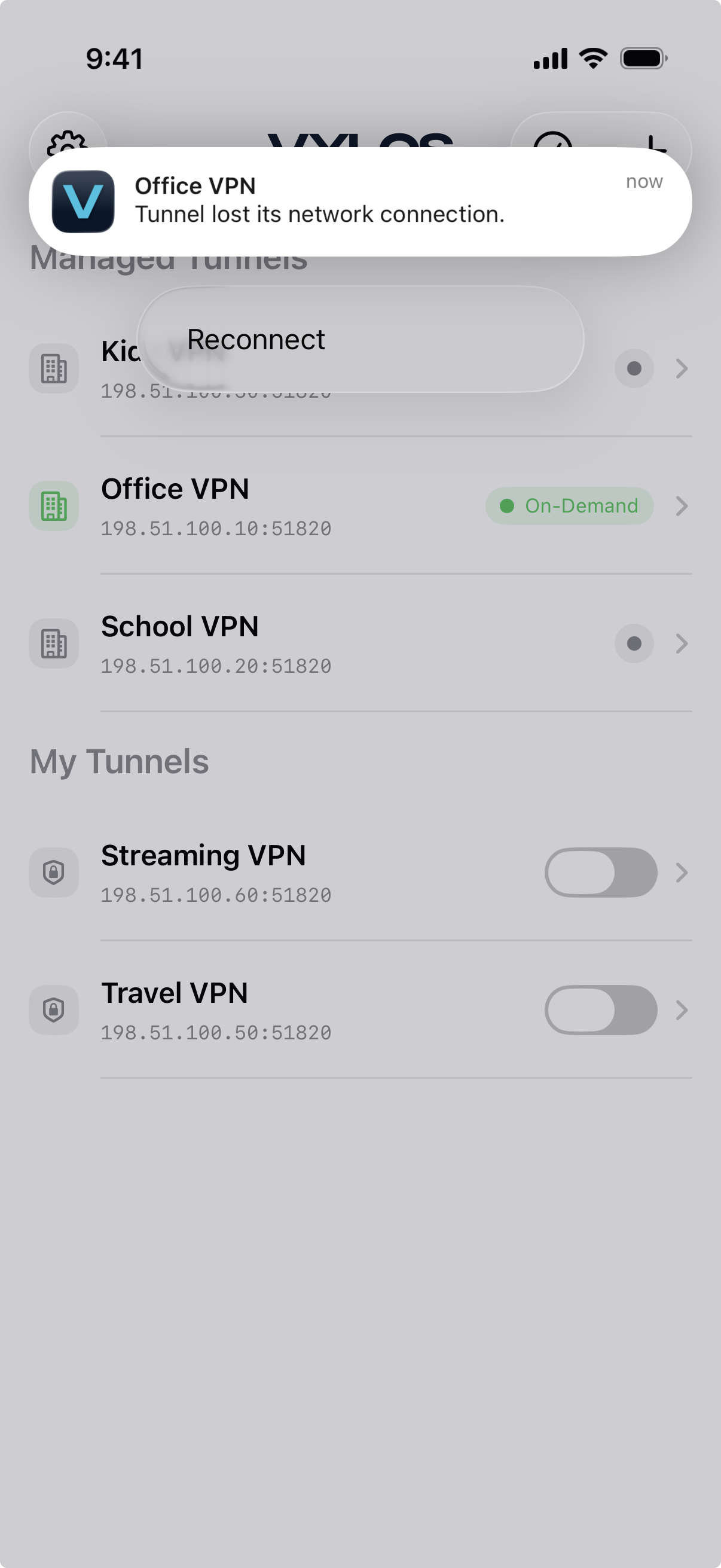
Disconnect notifications also play a sound, while the follow-up reconnect notification is silent to reduce noise during network transitions.
Throttling
To prevent a burst of alerts during flap storms — rapid connect/disconnect cycles from an unstable network — Vylos throttles each notification type to one delivery every 30 seconds. The throttle is per-type, so a "Provider Failed" notification does not suppress an unrelated "Connection Failed" notification during the same window.
Test Notification
A Send Test Notification button is available in the notification settings screen. Tapping it exercises the real network extension path — the app sends a provider message to the VPN component, which then posts a local notification. This verifies that not only notification delivery works, but the full app-to-network-extension communication path is functioning.
How Notifications Are Stored
Notification preferences are stored in a location that's shared between the Vylos app and its background VPN component. This lets the VPN component send the right alerts even when the main app isn't running. The network extension also mirrors the in-app language preference, so notifications appear in the language you selected regardless of whether the main app is running.